Build a stronger drawing.
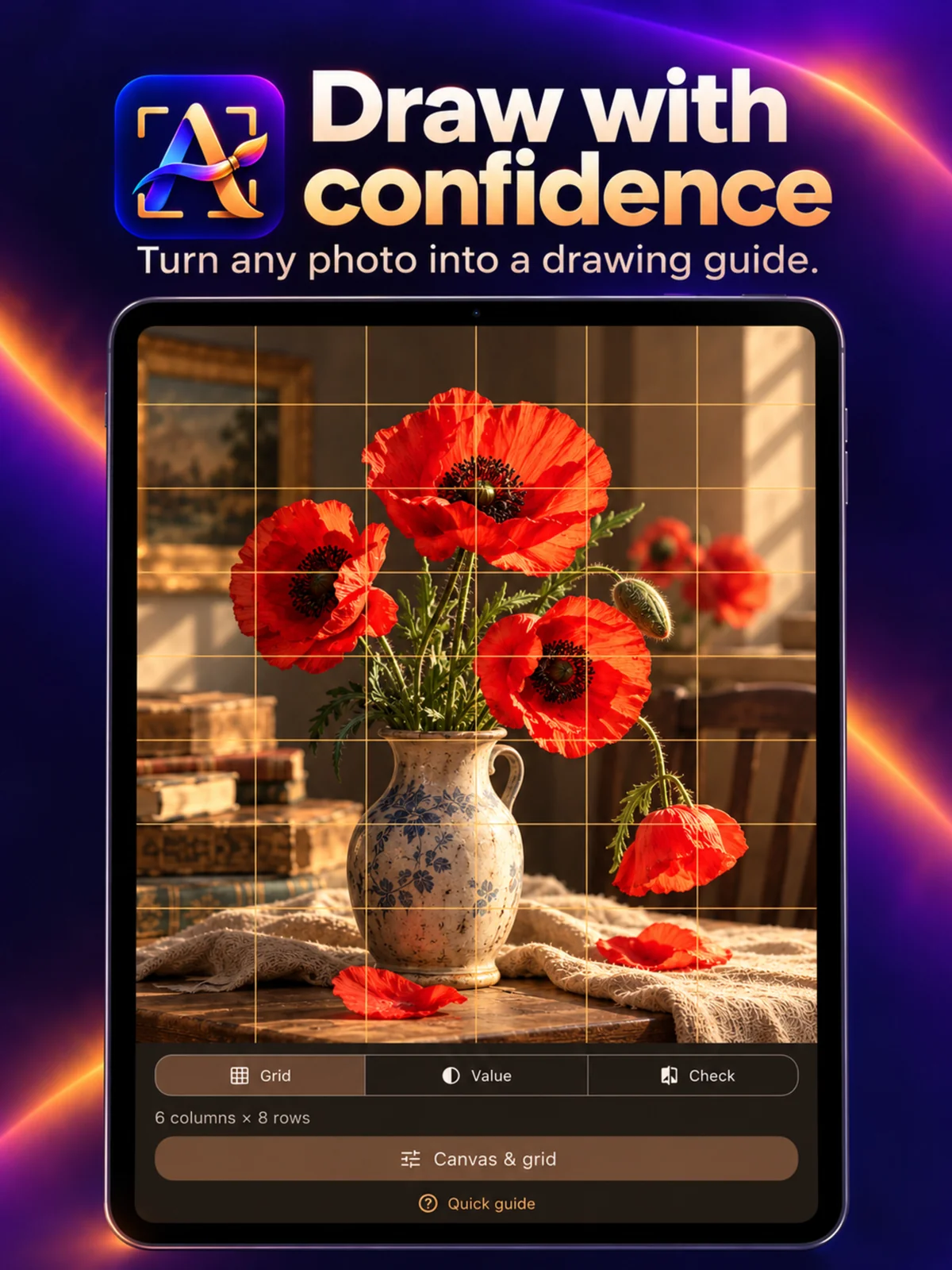
Set a grid for your canvas proportions. Adjust the columns, line color and opacity without changing your source image.
A reference beside your easel
Bring a photo into your studio. Find the proportions, read the light and shadow, and compare your painting as it grows — with reference tools that stay close to your work.
Designed for iPhone and iPad. Contact QDEE for availability.
Three tools. Your own process.
Use the tool that helps with the painting in front of you. There is no fixed sequence to follow.
Set a grid for your canvas proportions. Adjust the columns, line color and opacity without changing your source image.
View your reference in grayscale or simplify it to 2–5 values. Adjust the view when you need to study a shape or shadow.
Add a photo of your work in progress, align it with your reference, and compare with an overlay or a side-by-side view on a wide screen.
From a photo to a useful reference
No account setup. No need to organize a whole library before beginning. Start with one image and return to your study when you are ready.
Import from Photos or Files and confirm the crop and canvas proportions.
Use Grid, Value or Check as needed. Keep the screen awake during an active Studio session.
Resume your local project or export a Grid or Value PNG through the system share sheet.
Inside your reference workflow
Owner-supplied promotional artwork for iPhone and iPad, framed for the web. Open an image to see the full artwork.
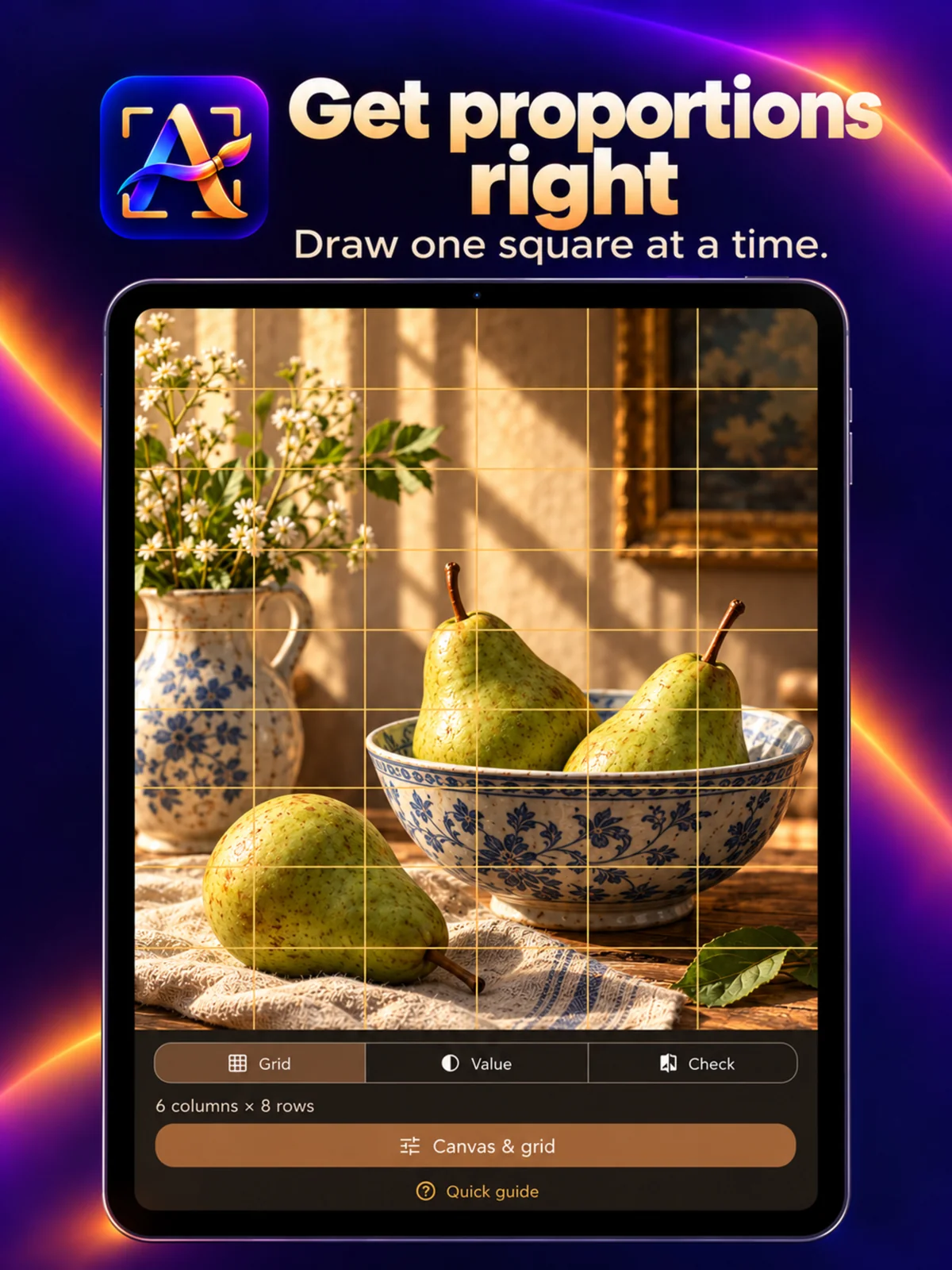
Work with a grid suited to your paper or canvas, including a partial final row when the proportions need it.
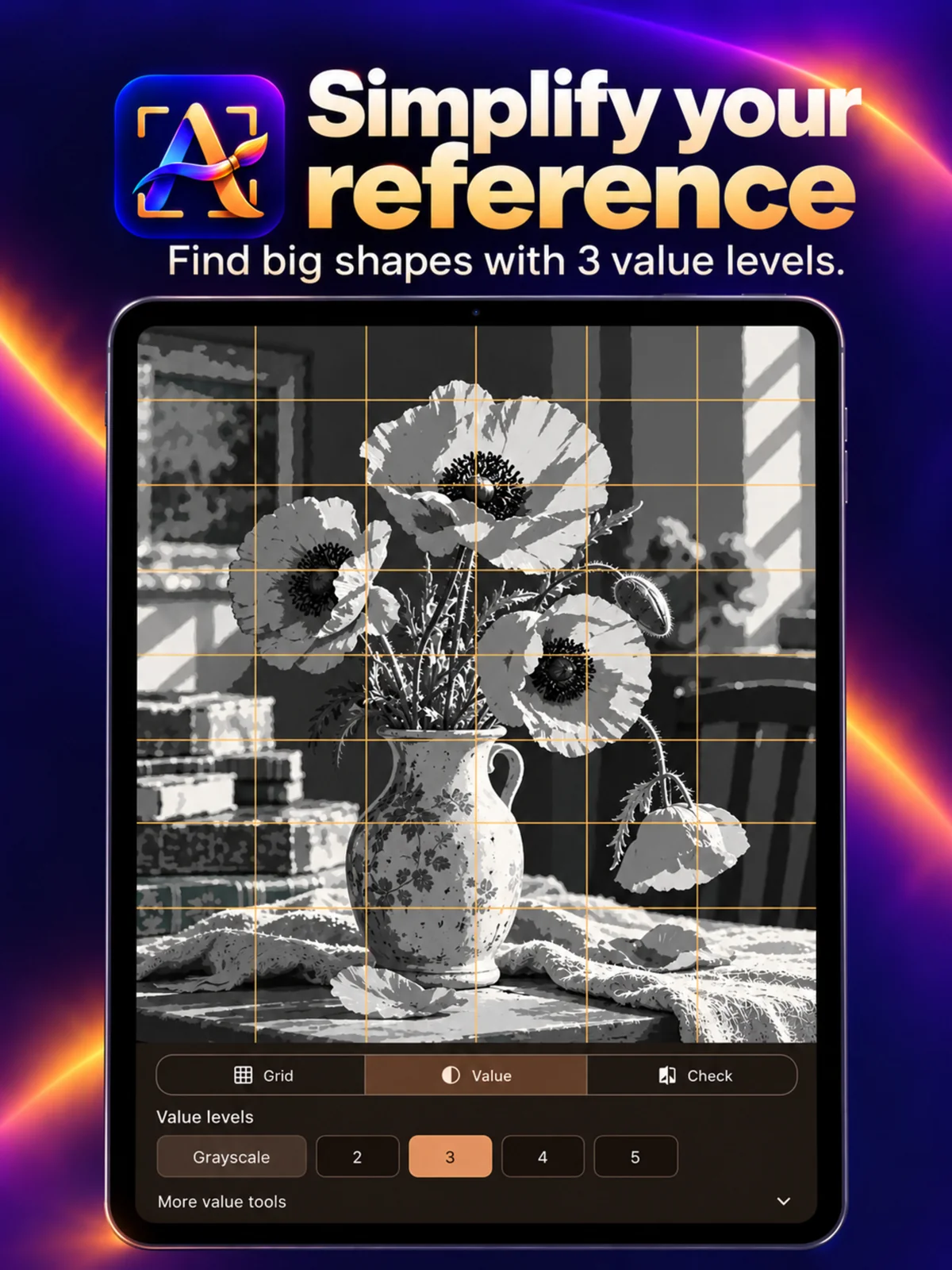
Simplify light and shadow so you can focus on the main shapes before the small details.
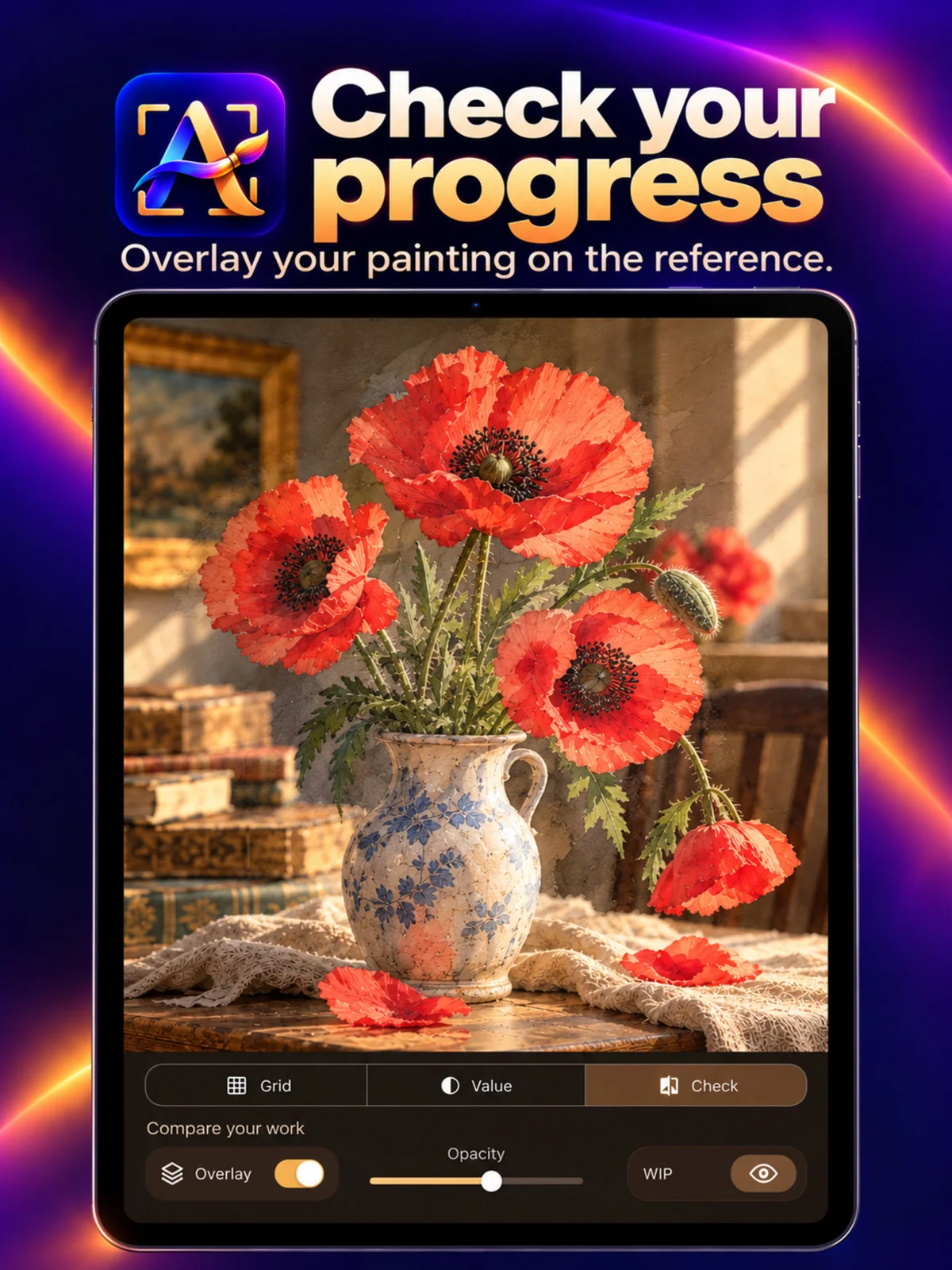
Use a work-in-progress image to revisit the relationship between your painting and its reference.
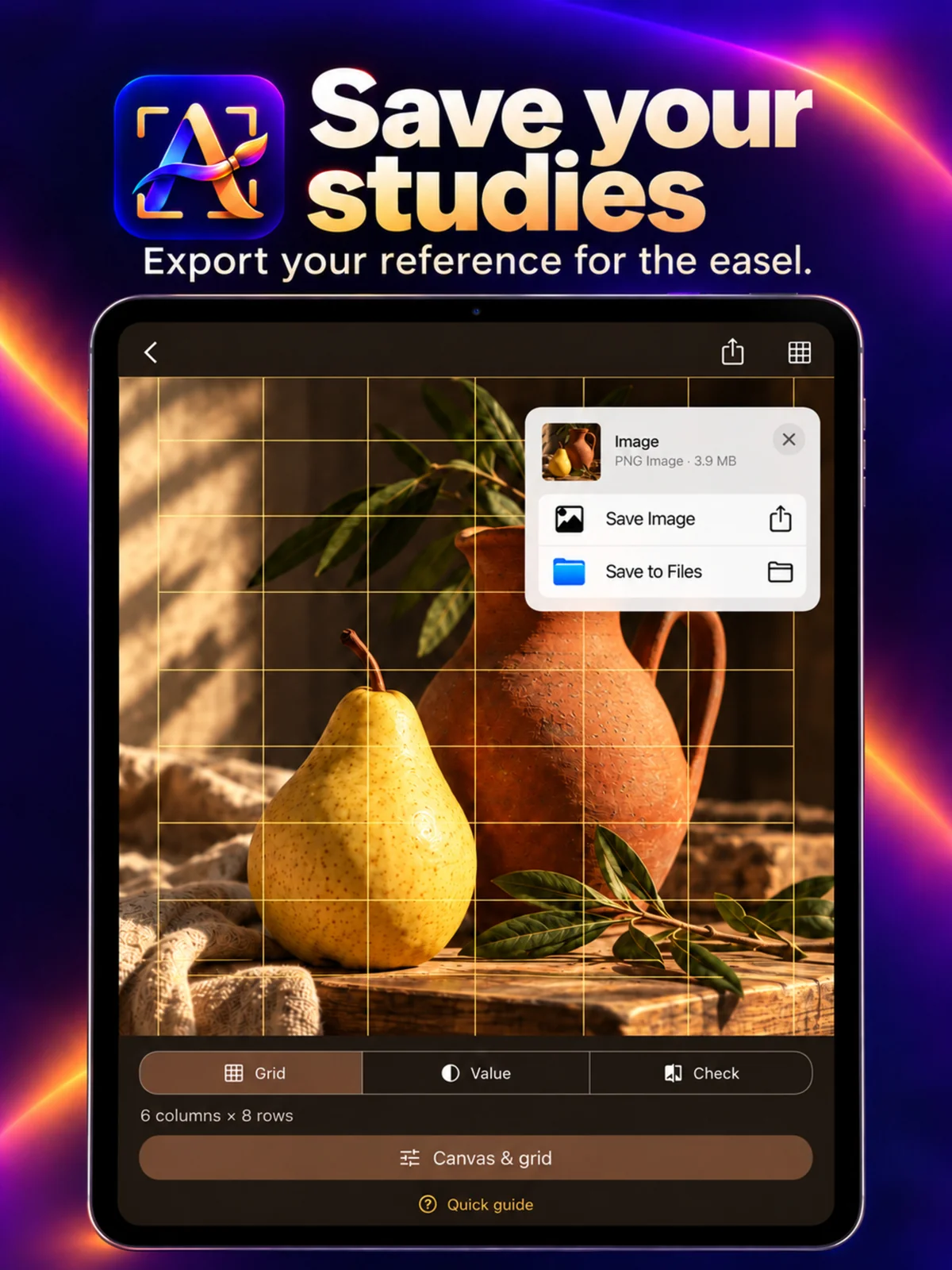
Export Grid or Value images and choose where to save or share them.
Your work belongs with you
Projects, reference images and work-in-progress photos are stored in the app on your device. The core tools do not require an account or upload your images to a developer server.
Read the privacy policy →People drawing or painting from photographs on paper or canvas. The app provides a reference beside your work; you make the artistic decisions.
Grid, Value, Check and local projects work on the device. An image or backup stored in iCloud may need internet to download. Support links also need a connection.
The app keeps its imported source image unchanged and stores adjustments separately. Exported images are separate files.
The portable ZIP includes project records and the app-owned reference and work-in-progress image files. Save it outside the app so it remains available after deleting the app.
The current tools focus on Grid, Value and Check. Automatic physical paint-mixing recipes are not part of this version.
Contact QDEE below for current availability. This page does not offer a Store download or an online purchase.
Talk to QDEE
Ask about Artist Reference Studio, report a problem, or suggest an improvement.
Having a problem or feeling dissatisfied? Tell us directly. We’ll work to fix it and update the app. Thank you for helping us improve.